I built a course recording system for myself, and in the end only two buttons were left
This article was originally published in “Vista Electronic News (opens in a new tab)” No.145
Hello, hello!
At 9:30 pm on September 29, I finished recording a three-minute test video (opens in a new tab) and dragged the file into the player. It felt pretty good. The briefing page flipped on the full screen. There was a small round frame in the lower right corner with my face in it. The background had been changed, the sound was clear, and the mouse cursor was not visible on the screen.
Seems pretty normal, right? But for those three minutes, I had built a much more complex system earlier that day, tried it out once, and then put it away in a drawer with my own hands.
In this issue of the newsletter, I want to talk to you about this process. On the surface, this seems to be a story about the development of a course recording tool, but I think what is really worth sharing is the gap between its implementation and its continued use.
Starting point: I want to make recording a class as easy as taking the stage
Well, let me give you some background first. In July of this year, I used Claude Code to build a video editing system for my own use, named vista-cut. I throw the materials into the folder, and AI will first convert the verbatim draft, plan the editing segments, and then call ffmpeg, a set of open source tools, to cut the video, score it, add subtitles, and output it to YouTube specifications. I only had to review it twice during the entire process: once to look at the editing plan and rough cut, and once to look at the finished film.
In July, the editing system for general films was completed. This month, I want to make up for a very practical need: recording classes.
I have given many lectures in the past few years, and the presentations are all on my computer or Presentation Website (opens in a new tab). Online courses have always been the direction I want to run well, and the most labor-intensive part of recording a course is never the lecture, but the editing after the lecture: the briefing screen needs to match the speech, the clip of the demonstration operation needs to be inserted, and where should the speaker’s screen be placed. Therefore, the goal this time is very clear: I am only responsible for speaking, and other matters are left to the system.
First edition: Very smart, but requires you to remember a lot of things
The design of the first version, looking back now, is indeed very smart.
I quickly added a lecture mode to the presentation. When starting recording, press the S key and clap your hands at the same time. The system will then use this clap to align the page turning record of the presentation with the camera recording time. During the lecture, every time a page is turned and every demonstration video is played, the time will be silently recorded in the presentation. After speaking, press Shift + D to download the record file.
When editing, the system takes this record and automatically combines the briefing screenshots, demonstration videos, and lecturer images into split screens: a large block on the left is the briefing, and a narrow column on the right is for the lecturer. When I encounter a paragraph where only I am speaking and there is no briefing, it will automatically cut to the full screen of the lecturer.
After I asked the AI to finish writing this set of processes, I sent another AI who was not involved in the development to do independent acceptance. The conclusion it returns is: Fail.
This approach is actually a habit I have developed recently. It is easy for a programmed AI to give its own work a high score because it remembers what it originally thought and will use the same set of ideas to check it. So I will open a new conversation, give it only the specification document and the finished product, not show it the development process, and ask it to try it out in real situations like a picky user. This time, it used a browser to actually open the briefing, simulate page turning and video playback, and then ran the entire process through two different formats of video, comparing the time frame by frame.
The problem lies in a very humble place. Computer-recorded operation videos usually have a color mark in the files, but presentation screenshots do not. When the two materials are connected together, ffmpeg will reconstruct the processing flow at the beginning of the demonstration video, so the timeline is reset to zero. After that, the briefing screen of the entire video is about eleven seconds ahead of the speech.
What is even more noteworthy is that at that time, the entire set of more than 300 automatic tests showed a green light. The reason is simple: the demonstration video used for testing is a solid color film generated by the program and does not have color markers. The test material is too clean, so the most common real-world conditions are not measured at all.
After the repair, the number of tests increased to three hundred and fifty-nine, all of which passed. Technically, the system is ready to use.
I tried it once and knew something was wrong.
Then it was my turn to audition for the recording.
I ended up pressing S one more time, and the E at the end twice. The system conscientiously recorded all these mistaken presses, and it also conscientiously failed to keep up with the time. My thoughts at the time were very straightforward: the steps were a bit complicated and I wasn’t very good at operating them.
As the developer of this system, even I find it complicated, let alone others.
Then I watched the split-screen version of the finished film, and the second question popped up. The picture of the lecturer’s column was cut out from the middle of the lens. I was sitting a little to the side, and my face was squeezed on the edge of the column. Moreover, my face was enlarged in the narrow column, the proportions were weird, and the overall look was uncomfortable.
Watching that video, I suddenly figured out one thing: the focus of the course is the content, not the lecturer’s face, and I’m not a handsome guy. What the audience needs is a sense of the picture. It is enough to know that a real person is talking to them. It does not require me to take up one-fifth of the picture.
Second version: streamlined to only two shortcut keys
If you think about this clearly, the development of the second version is very simple.
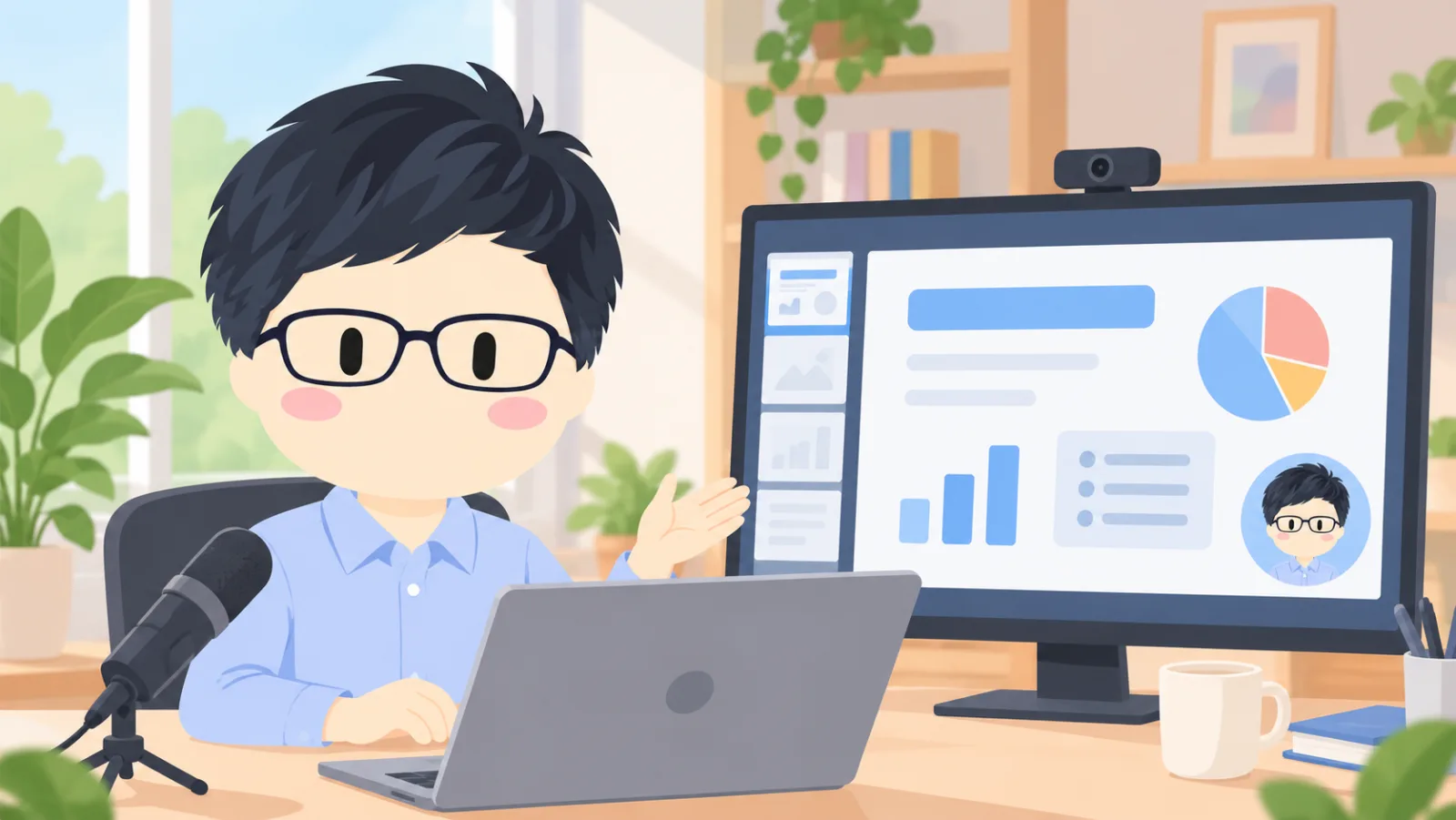
I moved the synthesis from the editing stage to the recording stage. Set up a scene in OBS, a free video recording software: the presentation fills the entire screen, and a small round frame with a diameter of 240 pixels is placed in the lower right corner, with me inside. The round frame only takes a square piece in the middle of the lens, so it doesn’t matter if I sit a little off, there is much more room for error.
When recording a class, there are only two things I need to do: press Shift+Option+B to start, and press Shift+Option+E to end. No need to clap, no need to press S, no need to remember to download the log file.
The work of the editing system has also become simpler. It is only responsible for cutting out slips of the tongue and blank spaces, lowering the volume to standard, and then adding subtitles. I did not delete the original program for automatic time adjustment and split screen, but kept it as a backup. Maybe I will take it out when needed someday.
I also went back and adjusted the briefing to match the round frame in the lower right corner. The first presentation that will be used for class recording has 200 pages. I asked the AI to clear the area about one-seventh wide and one-quarter high in the lower right corner of each page, move the page numbers to the lower left corner, and then find another AI to check page by page, and all 200 pages passed. Any new presentations made in the future will also be left blank in that corner.
By the way, the subtitles have also been upgraded. The original small white characters on a black background felt dull even when I saw them. Now change it to white bold fonts and darken the blue strokes. Choose one or two keywords in each sentence to color them. The colors directly follow the color matching in the briefing, so that the subtitles and the briefing look like the same design.
There is another little episode. When I first tested recording, I found that the sound was pitifully small, with an average volume of only minus 41 decibels. After checking, I found out that the Mac’s microphone input volume is set at twenty-seven. After adjusting it higher and re-recording, the average came to minus 29.7 decibels, and the remaining gap was made up by post-production. Such little things will never be discovered until you actually record them once.
Three principles I will bring to my next project
Looking back on this day, I have organized three principles for myself.
First, the steps to do it by hand are limited to three steps.
Any step that requires a person to remember is an area where things can go wrong. The first version required me to remember to press S, clap, turn the page, press E, and then press Shift+D to download. Each step was reasonable, but it added up to a burden. Now you only need to remember two keystrokes, and all preparations are done by AI in advance. When I design any process now, I always ask myself: Can a machine do this step for me? If not, can you take one less step?
Second, acceptance requires a different perspective.
More than 300 tests have been passed, but the most serious errors cannot be caught, because the people who write the tests and the people who write the programs use the same set of thinking. Truly useful acceptance requires the use of different materials and different perspectives, and is best done by people who have not participated in the development. This time I am looking for another AI; in the company, I may be looking for colleagues in another department to try it out.
Third, first think clearly about what is important.
The technical difficulty of the first version is much higher, but it is solving a problem that does not exist: how to make the lecturer’s picture larger and more accurate. Once I figured out that the protagonist of the course was the content, most of the complexity disappeared naturally.
Remember e-newsletter issue 137 (opens in a new tab)? I wrote, “In the past two weeks, I have dismantled more things than I have built new ones.” This time it was the same experience: One-person company (opens in a new tab) No one will stop for you. The one who says “I don’t want this anymore” can only be ourselves. And the sooner you shout, the better, preferably during the first trial.
If you want to start recording classes, you can do these three things first
Finally, here are three tips for you who are considering taking online courses. You don’t need to write the program yourself, you can do it with ready-made tools.
-
First decide on the protagonist of the picture. In explanatory courses, the presentation is the protagonist, and the speaker only needs to occupy a small corner; especially in practical or demonstration courses, the operating screen is the protagonist. Once the protagonist is decided, the layout is decided.
-
Set up an easy-to-remember shortcut key for start and end. OBS allows you to customize shortcut keys and choose a combination that won’t conflict with other software. You don’t have to switch windows to find buttons when recording a class.
-
Before officially recording, record a three-minute preview. Just check three things: whether the sound is loud enough, whether the screen shows things that shouldn’t be there, and whether the speaker’s screen blocks important content. This is how I caught the microphone volume problem that time.
Next, this course recording process will be officially used in my online courses. When the first course video is released, I will share with you how many hours it actually took to record, how many hours to edit, and what was removed in the middle.
Have you ever made something really clever recently, only to decide not to use it? Feel free to write me back directly, I’d love to hear your story.
If you are interested in “you can use AI to make your own tools without knowing how to write programs”, many of the methods in this article are more completely explained in “Zero Basics of Vibe Coding (opens in a new tab)” that I published last month.
See you next time!
Vista
Next step
Bring this topic to your team
Vista Cheng speaks and runs workshops on AI workflows, writing and content systems for companies, schools and public agencies.